Windows 11 November 2026 Update: Custom Right-Click Menus and Cloud Rebuild Explained
Microsoft has released its November 2026 Windows 11 update, bringing a customizable File Explorer right-click menu, a new Cloud Rebuild recovery option and several usability improvements. Here's what the changes mean for Windows users and how to access the new features.
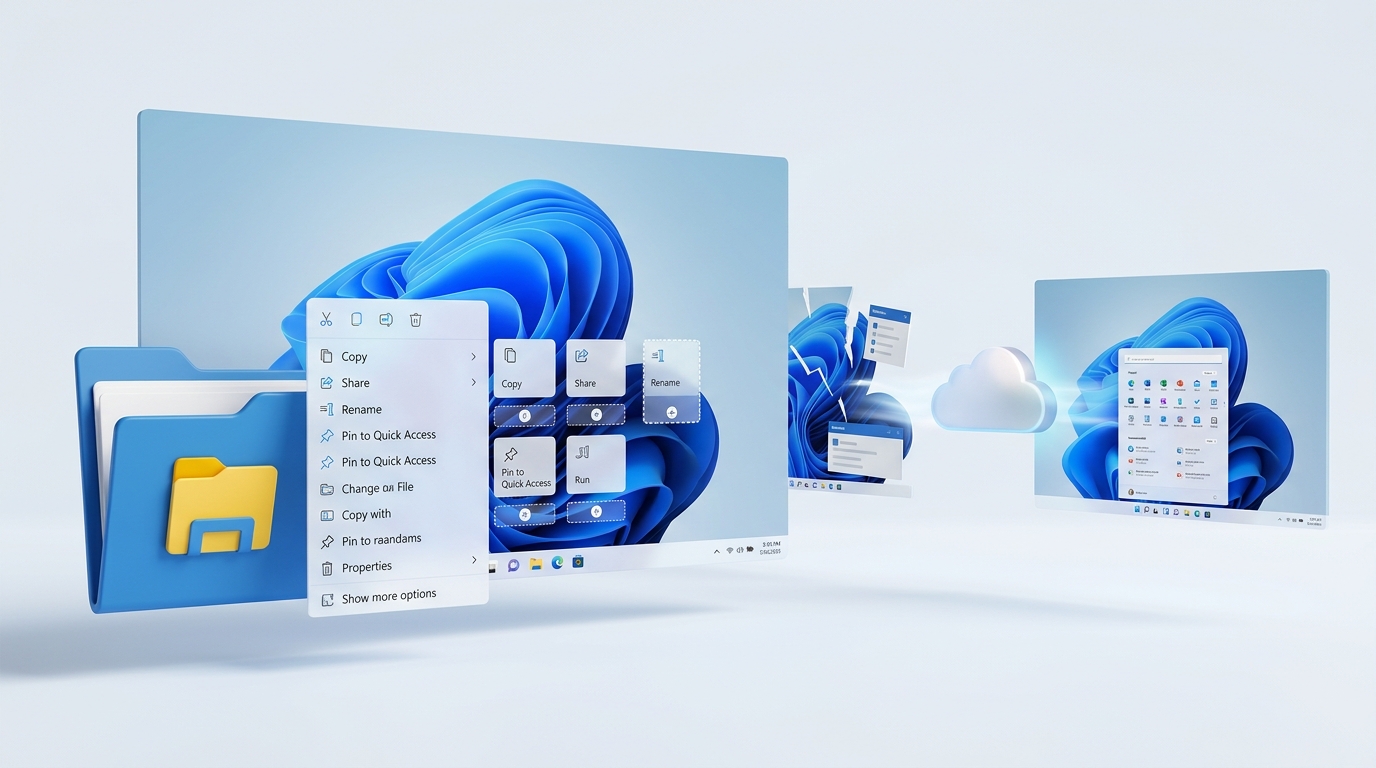
Microsoft has started rolling out its November 2026 Windows 11 update, introducing several improvements designed to make everyday computer use more convenient. Among the most notable additions are a customizable File Explorer right-click menu and a new recovery feature called Cloud Rebuild, which allows users to reinstall Windows without creating a bootable USB drive.
The update, identified as KB5132061, also includes accessibility improvements, changes to system settings, and several security and reliability fixes.
For users who have found Windows 11's right-click menu unnecessarily cluttered or have struggled with reinstalling Windows after system problems, these changes could make a noticeable difference.
Here's a closer look at what's new, how the features work, and what Windows users should know before updating.
Windows 11 Finally Lets Users Customize the Right-Click Menu
One of the most noticeable changes in the November update is the redesigned File Explorer context menu.
The right-click menu is something Windows users interact with regularly. Whether copying files, renaming folders, sharing documents or accessing application-specific commands, it provides quick access to frequently used actions.
However, Windows 11's context menu has received criticism for its layout, missing options and the additional steps sometimes required to access older commands.
Microsoft is addressing some of these complaints by giving users more control over what appears in the menu.
With the new customization option, users can choose which commands and application extensions appear when they right-click files and folders.
What Can You Customize?
The updated menu introduces several useful options:
- Enable or disable built-in commands: Users can remove commands they rarely use, including Send to and Create shortcut.
- Add commands: Options such as Print can be added to the context menu.
- Manage application extensions: Third-party application commands can appear directly in the main menu, inside a submenu or be hidden.
- Change command presentation: Cut, Copy, Paste, Rename, Delete and Share can appear as text labels instead of the traditional row of icons.
- Reposition Properties: Users can move the Properties command to the bottom of the menu.
These changes give users greater control over how File Explorer behaves without requiring third-party customization applications.
How to Customize the Windows 11 Right-Click Menu
Once the feature is available on your computer, follow these steps:
- Open File Explorer.
- Right-click a file or folder.
- Look for the Customize menu option at the bottom.
- Select it to open the context menu customization settings.
- Choose which commands and application extensions you want to display.
- Adjust the layout to suit your preferences.
You can keep the default configuration if you prefer the existing arrangement.
The customization feature is particularly useful for people who regularly work with large numbers of files and want a cleaner, more efficient interface.
Microsoft Introduces Cloud Rebuild for Windows 11
Another major addition is Cloud Rebuild, a new Windows recovery option designed to simplify the process of reinstalling the operating system.
Previously, reinstalling Windows on a computer that needed a fresh installation could involve creating a bootable USB drive, downloading installation media or using locally stored recovery files.
Cloud Rebuild provides another option.
It allows Windows 11 to download a compatible Windows image and the necessary device drivers through Windows Update before reinstalling the operating system.
One particularly useful aspect is that the recovery process can also be initiated when Windows is unable to start normally, provided the Windows Recovery Environment is available.
How Does Cloud Rebuild Work?
Cloud Rebuild uses the Windows Recovery Environment (WinRE) to initiate the reinstallation process.
Instead of relying entirely on installation files already stored on the computer, it obtains the required Windows image and drivers through Microsoft's update infrastructure.
This can be useful when local recovery files are damaged, missing or unsuitable for completing a recovery operation.
Microsoft also provides options for handling existing data before the reinstallation begins.
Users can choose to remove their files or securely erase data using the storage hardware's supported erase capability.
The secure sanitization option is irreversible, so users should understand the consequences before proceeding.
How to Use Cloud Rebuild
If Windows is working normally, the process can be started through Settings.
- Open Windows Settings.
- Navigate to System.
- Select Recovery.
- Look for the Rebuild PC option.
- Follow the instructions to start the recovery process.
- Connect to a wired or wireless internet network.
- Review the Windows version, edition and language.
- Choose the appropriate data removal option.
- Confirm the operation to begin the rebuild.
If Windows cannot start, the computer may enter the Windows Recovery Environment automatically after repeated startup failures.
From there, users can navigate to Troubleshoot, select Recovery and uninstall, and choose Cloud Rebuild if the option is available.
An internet connection is required because the Windows image and drivers are downloaded during the process.
Users should also remember that reinstalling Windows can remove personal files and applications depending on the selected recovery option. Important documents should be backed up before starting.
Other Improvements Included in the November Update
Although the customizable right-click menu and Cloud Rebuild are the main attractions, Microsoft's November update includes several additional improvements.
1. Better File Explorer Search
File Explorer search results now display important file information, including names, locations and dates, in a more consistent layout.
This makes it easier to identify the correct file when searching through large folders.
2. Dark Mode for Folder Options
The Folder Options dialog now supports dark mode, making the interface more consistent with the rest of Windows 11 for users who prefer darker themes.
3. Improved Magnifier Features
Microsoft has expanded Magnifier with per-monitor zoom controls, allowing users with multiple displays to choose different magnification levels for individual screens.
It also introduces viewport locking, which keeps the magnified view fixed on one display while the user moves the pointer to another.
These improvements are particularly useful for people with visual impairments.
4. Better Accessibility With Narrator
Narrator now supports reading and navigating mathematical equations in supported applications and web content.
This is an important accessibility improvement for users who rely on screen-reading technology to interact with documents and educational material.
5. Improved Windows Recovery Connectivity
Windows Recovery Environment can now reuse eligible Wi-Fi profiles already saved in Windows.
This means supported computers can connect to the internet during certain recovery operations without requiring users or administrators to configure network credentials again.
6. Faster Microsoft Edge Launches
Microsoft has also introduced an application-launch improvement for Edge on Windows.
When Edge is already running in the background, Windows can route new launch requests directly to the existing process instead of starting an additional temporary process.
Microsoft says this can make opening Edge feel faster and more consistent, particularly when several applications are running.
How to Get the November 2026 Windows 11 Update
The November update is identified as KB5132061.
It applies to Windows 11 versions 25H2 and 26H2, with applicable security and quality improvements also provided to Windows 11 Enterprise and Education devices running version 24H2.
To check for the update:
- Open Settings.
- Select Windows Update.
- Click Check for updates.
- If KB5132061 is available for your device, follow the instructions to download and install it.
- Restart your computer if Windows requests it.
You can also check your installed Windows version by pressing Windows + R, typing winver and pressing Enter.
Important: Microsoft uses a gradual rollout for some of the new features. Installing the November update does not necessarily mean every new feature will appear immediately. Availability can vary depending on the device, Windows version and rollout eligibility.
Is the November 2026 Windows Update Worth Installing?
For most supported Windows 11 users, installing the November security update is advisable.
Beyond its new features, KB5132061 includes security improvements and fixes for issues involving audio devices, printing, Remote Desktop and other Windows components.
The customizable right-click menu is a welcome usability improvement, particularly for people who frequently manage files and folders.
Cloud Rebuild is arguably the more significant addition because it provides another recovery option when a Windows installation develops serious problems.
However, it should not be considered a replacement for regular backups or a guarantee that every computer can be recovered without additional troubleshooting. Its operation depends on a functioning recovery environment, network connectivity and compatible Windows images and drivers.
Users should also take time to understand the data removal options before initiating a rebuild.
Final Thoughts
Microsoft's November 2026 Windows 11 update focuses on making the operating system easier to use, customize and recover.
The redesigned right-click menu addresses a familiar File Explorer complaint, while Cloud Rebuild provides a more convenient way to reinstall Windows without depending on traditional USB installation media.
Together with the accessibility improvements and system fixes, these additions show Microsoft's continued effort to improve the everyday Windows experience.
Although some features are still rolling out gradually, Windows 11 users have several useful improvements to look forward to.
If you regularly work with files or have ever struggled to recover a Windows installation, these are changes worth paying attention to.
Microsoft Opens 2026 .NET Developer Survey to Gather Feedback From Developers Worldwide
Next Dispatch →Microsoft Fixes 1,094 Security Flaws in November Update, Including Exploited Outlook Zero-Day
Discussion (0)
Technical commentaryLeave a Reply
No comments yet. Be the first to share your thoughts!